Basic operations
Image properties
create [-c <channels>] [-t <timepoints>] uint8|uint16|...|float64 <sizeX,sizeY[,sizeZ]>
This operator creates a new image with the specified features.
When invoked from a pipeline, the operator replaces the current image by the newly created one. When not invoked from a pipeline, the operator stores the created image under the filename passed as argument in the BIP command. It is possible to specify several filenames, thus creating several images at once.
Note
Contrary to other BIP operators, this operator does not append its name to the output filename.
The required parameters are the numerical type (uint8, uint16, etc.; see Table 1 for available types) and the image size. The created image is 2D if only two size values are provided, and 3D if three values are provided. The -c and -t options allow to create multi-dimensional images with multiple channels or timepoints.
Example 1. Creating a 256\(\times\)256 8-bit image in 2 dimensions:
bip create uint8 256,256 image2D.tif
Example 2. Creating a 1024\(\times\)1024\(\times\)32 3D image with 32-bit positive integer values:
bip create uint32 1024,1024,256 image3D.tif
Hint
The created images are not calibrated. Users should take care to set spatial calibration (XYZ sampling and distance units) after creation. Similarly, users may want to set temporal sampling and physical origin. See operators set and set-from.
convert [-f] <uint8|uint16|uint32|int8|int16|int32|float32|float64>
Converts the input image to the specified numerical type (see Table 1 for the characteristics of the different numerical types available in BIP).
Conversion may cause truncation when converting between types of different ranges, such as from uint16 (16-bit image) to uint8 (8-bit image). Conversion may also cause a loss of precision, as when converting from float32 to int32. By default, the operator raises an error if the conversion would result in truncation or loss of precision. This behaviour can be overridden using the -f option, which forces the conversion to be performed even if such errors occur.
info [-l] [-o <output.tsv>]
This operator prints a table of properties for the input images. The properties include image size, number of channels and timepoints, numerical type, spatial calibration, and compression mode. See Table 2 for a complete listing of reported parameters.
This operator is particularly useful to check that images have a correct spatial calibration, and that a collection of images in a project have consistent spatial calibrations or numerical types.
If the -l option is specified, the table displays in addition the minimum and maximum value in each image.
The output of this operator may look messy and difficult to read in the terminal, especially when applied to large sets of images with filenames of varying size (which breaks the alignment of column contents). You can use the -o option to specify an output filename (or the shell redirection operator) to store the output in a file that can subsequently be loaded in your preferred spreadsheet application. The format of the output file is Tabular-Separated-Values. The .tsv extension is automatically added if absent from the specified argument of the -o option.
Column |
Information |
|---|---|
|
Input image filename (including access path, if any) |
|
Numerical type of image values (see supported types in Table 1) |
|
Compression mode ( |
|
Number of columns in the image |
|
Number of rows in the image |
|
Number of slices in the image (equals 1 for 2D images) |
|
Number of samples (values) per pixel/voxel |
|
Number of timepoints in the image |
|
Number of channels in the image |
|
Spatial sampling in the horizontal direction (“pixel width”) |
|
Spatial sampling in the vertical direction (“pixel height”) |
|
Spatial sampling between slices (“voxel depth”) |
|
Length unit |
|
Temporal calibration (time interval between frames in time-lapse) |
|
Position of top-left corner in physical space (X coordinate) |
|
Position of top-left corner in physical space (Y coordinate) |
|
Position of top-left corner in physical space (Z coordinate) |
|
The minimum value contained in the image [optional] |
|
The maximum value contained in the image [optional] |
set <dx|dy|dz|dt|unit|x0|y0|z0> <value>
Warning
Since this operator modifies metadata, its use is strongly discouraged, unless you know exactly what you are doing. This operator is provided mainly for repair operations, for example to re-introduce in metadata the spatial calibration that may have been lost during processing with 3rd-party software (yes, this happens).
This operator sets metadata values related to spatial calibration, temporal calibration, and position in physical space. For example, the spacing between consecutive slices in a 3D image would be set to 0.707 using:
bip set dz 0.707 *.tif
Several values can be set at once, as shown in this example for the XY sampling values:
bip set dx,dy 0.618 *.tif
The length unit is specified by its scale (power of 10, in meters). For example, to specify that lengths are expressed in microns, one should use:
bip set unit -6 *.tif
set-from <source-path> <dx|dy|dz|dt|unit|x0|y0|z0>
Warning
Since this operator modifies metadata, its use is strongly discouraged, unless you know exactly what you are doing. This operator is provided mainly for repair operations, for example to re-introduce in metadata the spatial calibration that may have been lost during processing with 3rd-party software (yes, this happens).
This operator copies across images the metadata values related to spatial calibration, temporal calibration, and position in physical space.
For example, the Z sampling value (inter-slice spacing) in all images of the current directory would be set to the value of a reference image using:
bip set-from ../other/reference.tif dz *.tif
Several values can be set at once, as shown in this example for the XY sampling values:
bip set-from ../other/reference.tif dx,dy *.tif
The reference may vary from one image to the next. For example, assume the current directory contains files image00.tif…image99.tif with no spatial calibration. Assume in addition that they all derive from images raw00.tif…raw99.tif, which have the proper calibration (possibly different from one image to the next) and are stored in another directory. Then the calibration can be restored by:
bip set-from ../other/:s/image/raw/ dx,dy,dz,unit image??.tif
See Pairing images by matching filenames to learn more about the pattern substitution used in this command.
Image compression
compress
This operator compresses the input image files (lossless compression). The compression algorithm is the Lempster-Ziv-Welch (LZW) method [Welch, 1984], which is also described in the TIFF specifications [Adobe Developers Association, 1992]. No output file is written if the input file is already compressed.
uncompress
This operator uncompresses the input images. No output file is written if the input file is already uncompressed. This operator may be useful to allow or to speed-up file loading in software in which the opening of compressed image files is not supported or is too slow.
Image arithmetics
abs
This operator replaces the values of the input image by their absolute values.
add <image>
This operator performs the point-to-point addition with the specified image.
The operation is only possible between images of same size and same numerical type.
add-value <value>
This operator adds the specified value to the input image.
and <image>
This operator performs a logical AND on each bit of two operands.
divide <image>
This operator performs the point-to-point division with the specified image.
The operation is only possible between images of same size and same numerical type.
divide-value <value>
This operator divides the input image with the specified value.
multiply <image>
This operator performs the point-to-point addition with the specified image.
The operation is only possible between images of same size and same numerical type.
multiply-value <value>
This operator multiplies the input image by the specified value.
or <image>
This operator performs a logical OR operation on each bit of two operands.
subtract <image>
This operator performs the point-to-point subtraction with the specified image.
The operation is only possible between images of same size and same numerical type.
subtract-value <value>
This operator subtracts the specified value to this image.
xor <image>
This operator performs a logical XOR operation on each bit of two operands.
Image manipulation
flip x|y|z
This operator flips the contents of the input image along the specified direction (symmetry transform). Specifying x corresponds to a left/right symmetry. Specifying y corresponds to a top/bottom symmetry. Specifying z corresponds to a stack top/stack bottom symmetry in a 3D image. As expected, using the z option on a 2D image does not modify its contents.
invert auto|type|<value>
This operator inverts the values of the input image. The inversion is performed according to the following formula, applied at every image position:
The pivot value depends on the parameter passed to the operator:
autothe pivot value is taken as the maximum value in the image;
typethe pivot value is taken as the maximum possible value for the numerical type of the image (255 for unsigned char, 65535 for unsigned int, etc.);
<value>the pivot value is set to the specified
value.
mask <mask-image-path>
This operator performs a masking operation by setting to 0 all positions of the input image that fall out of the specified mask. A position is considered as located within the mask if its value in the mask image differs from 0. Note this allows to use mask images that are not necessarily binary images (such as label images; see Figure 1), though many practical applications will probably use this operator with binary images.
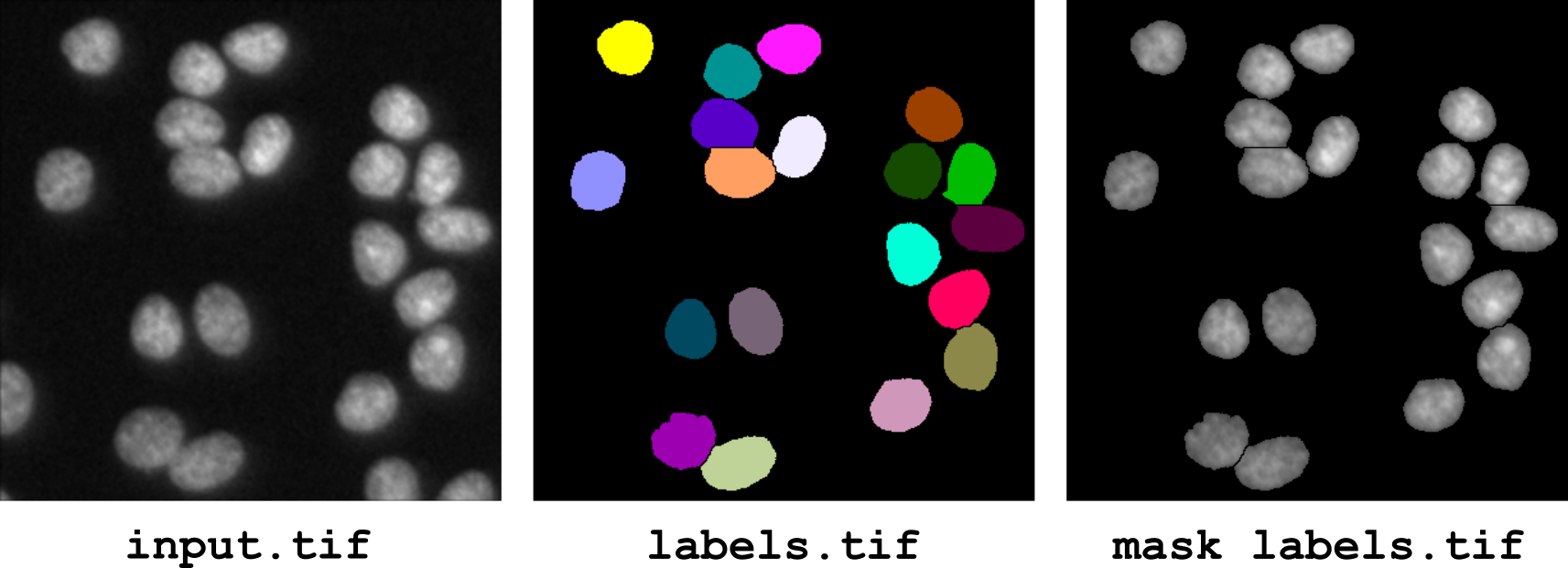
Figure 1 Masking a gray level image from a segmented image: operator mask. Complete command to generate the output image: bip mask labels.tif input.tif.
The mask image may have a different size (hence, spatial sampling) than the image to filter. In this case, nearest interpolation neighbour is used to map positions between the two images. This is typically useful when defining a mask at a coarse resolution and applying it to another image at a higher resolution.
The mask image and the image to filter can also have different value types. This is useful since mask images are typically 8-bit (when binary), while images to filter can be of any type.
shuffle
This operator performs a completely random permutation of pixel/voxel values in the input image(s). The resulting image has the same histogram as the input image, but second-order correlations and higher statistics are lost. This operator is essentially provided for pedagogical reasons and may be useful is specific applications.